
On this page
Pairing associates a specific mobile device with a server. After successful pairing, the client saves its own access data, and the server sees the device in the list and can revoke its access if necessary.
Before starting
- The server is running and accessible from the device.
- The correct server address and port are specified in the client.
- The server has free space under the license or a demo device is available.
- An administrator has access to the server's control panel.
1. Create a request on the device
In the PalmOrder application, open the exchange settings and select server mode version 7 or later.
- Specify the server address and port.
- Enable Use secure connection (HTTPS) if necessary.
- Enter a meaningful device name, such as
Планшет Київ 1. - Click Pair.
The client will display a six-digit confirmation code and a standby status. Do not close the settings: the code will be needed on the server.
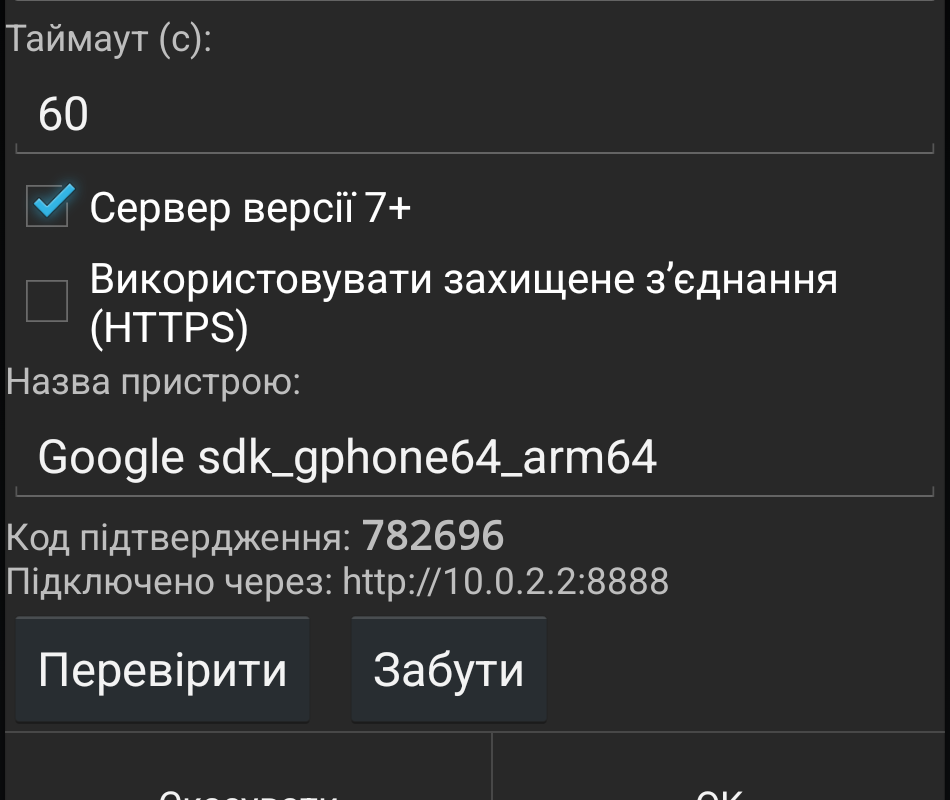
PalmOrder Client shows confirmation code 782696 and waits for administrator action.
2. Approve the request on the server
On the server computer, open Bindings in Control Panel. Search for a new request by device name and confirmation code.
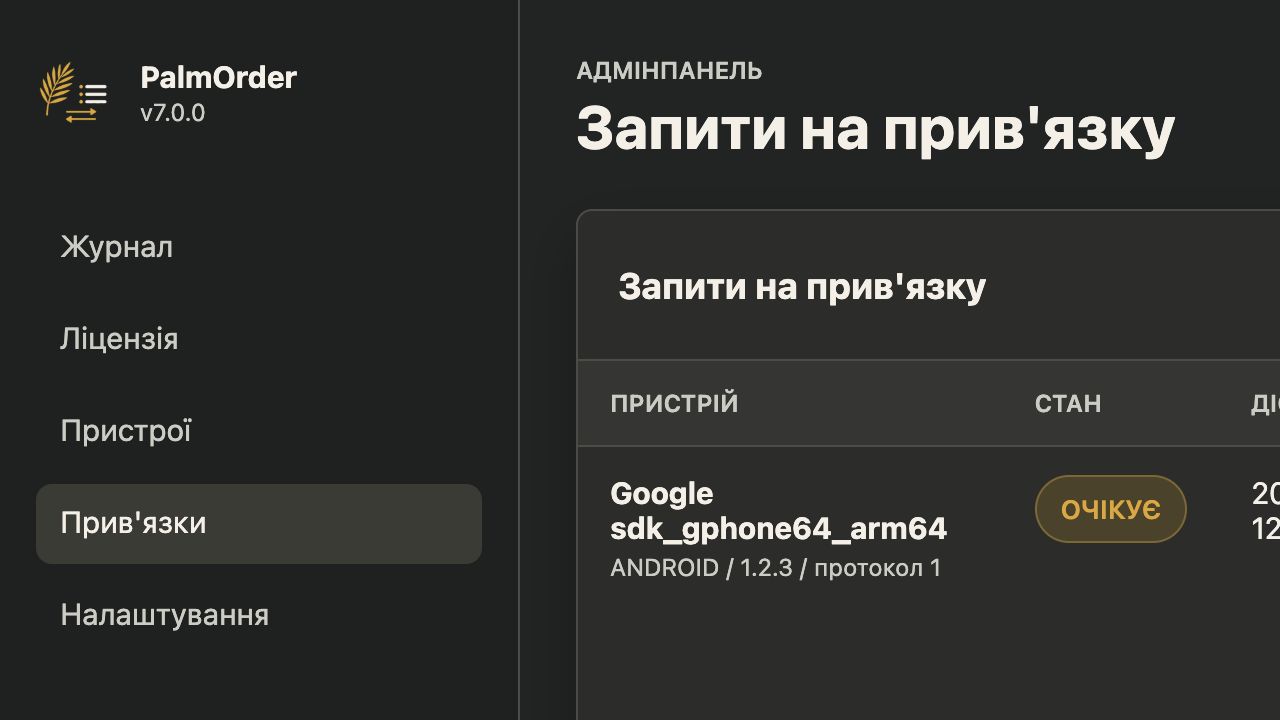
PalmOrder Server shows a new request in the status "Waiting".
- Enter the code shown on the device.
- Select the license type:
FULL,MEDIUMorLITE. - Specify
syncName— sync name. It will identify this device when communicating with PalmOrder Server and the accounting system (ERP), such assales-kyiv-1. - Click Approve.
syncName must be unique. Use Latin letters, numbers, periods, hyphens and underscores; length - up to 64 characters.
Tip Call
syncNameby role and city or route. This will make it easier to search for events in the log and configure individual exchange directories.
3. Complete the pairing on the device
Return to the PalmOrder app and click Check. When the server has already approved the request, the client will receive the access data and show a status like:
Спаровано як sales-kyiv-1 (FULL)
On the server, the device will appear under Devices. There you can see its name, type, syncName, platform, application version and time of last activity.
Device recall
If the phone is lost, replaced, or no longer in use, open Devices and click Revoke for the appropriate line. After that, the device will no longer be able to share data, and its place will return to the license limit.
Repeat the pairing for the new device. You can use syncName of a recalled device: only active device names must be unique.